Feedback Forms
Feedback forms let you collect anonymous feedback from attendees after a session.
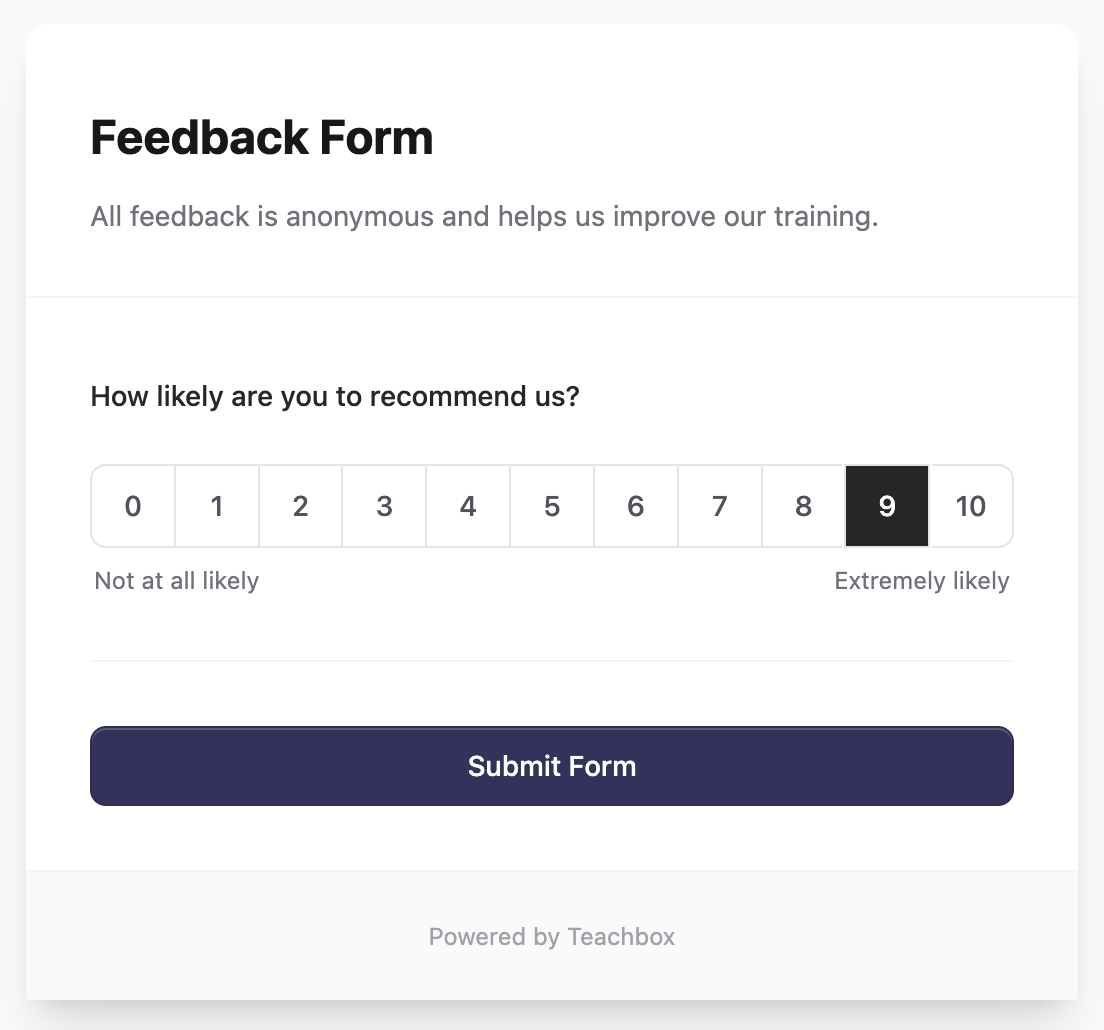
Create a Feedback Form
- In Teachbox, use the left navigation to go to Operations → Forms.
- Click New Form.
- In the form editor, add questions from the Form Fields sidebar.
- Click Save.
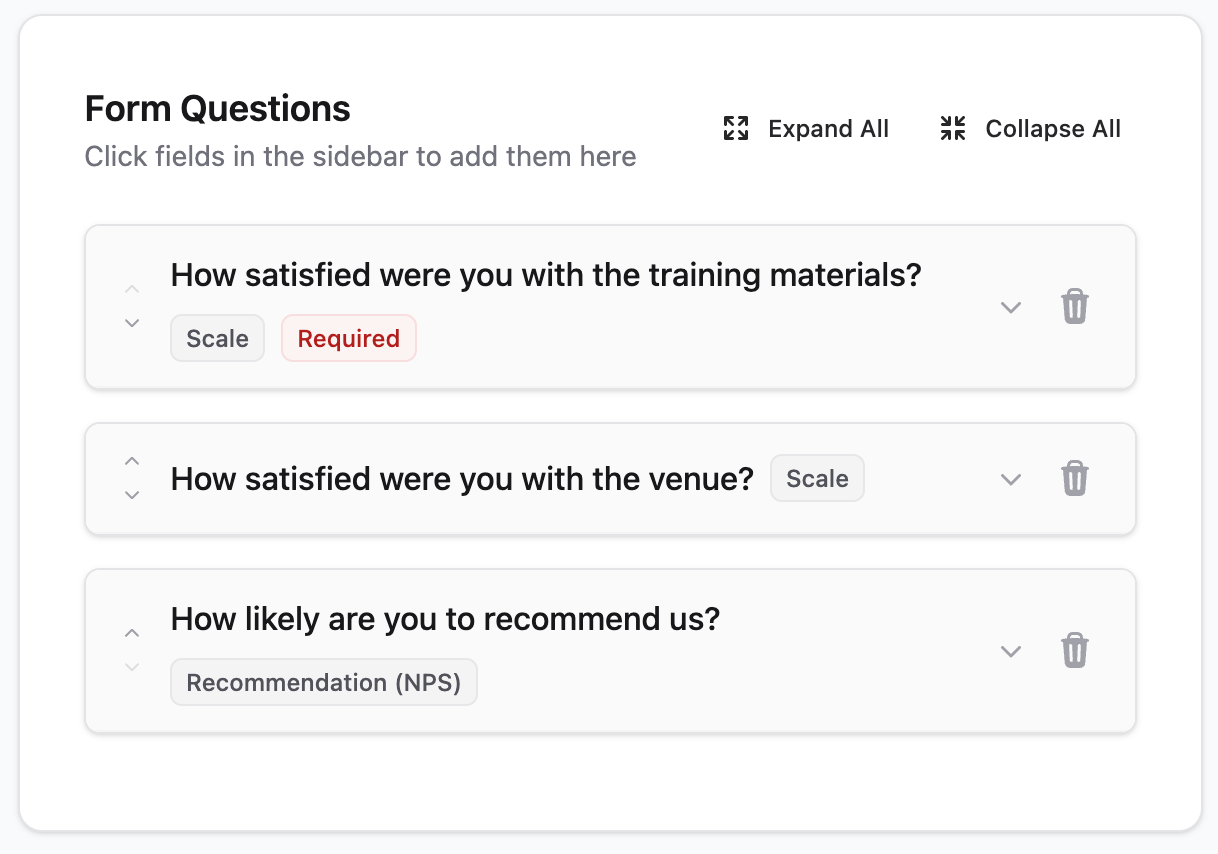
Attach Feedback Form
Feedback forms can be reused across many different courses, or you can decide to have a unique feedback form for each course or session you run.
- First, navigate to a course date (or template) that you would like to add a feedback form to.
- Click Settings in the header.
- In the Advanced tab, you will see a Session Feedback section.
- Enable Collect Session Feedback.
- Choose a feedback form.
Tip: Be sure to enable Feedback Forms at the course template level so your feedback form is used on all future course dates.
Feedback Links
You can copy the feedback link for a product easily.
- First, navigate to a product in Teachbox.
- Click ⋮ (the triple-dot menu) in the header.
- Click Copy Feedback Link.
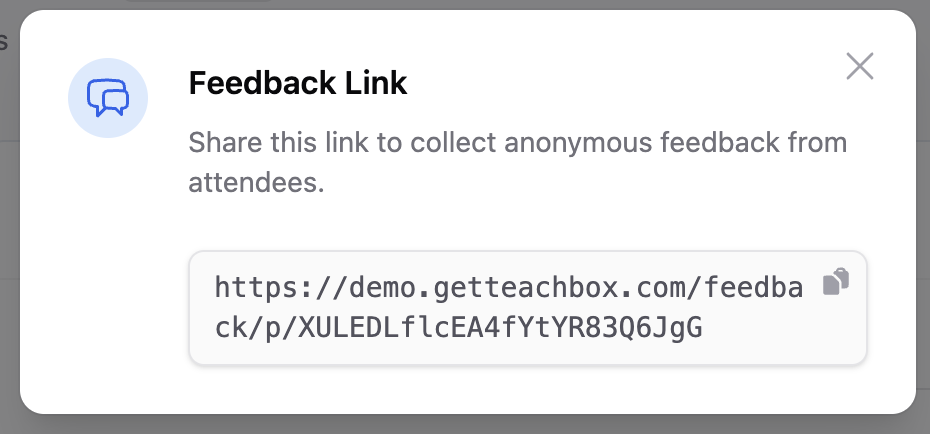
This will provide you with the feedback link for that product.
This is a fixed link that will never change, so feel free to add it to your slides or generate a QR code for it.
When clicked, the feedback link will show any sessions for that product where the feedback form is open.
Feedback Emails
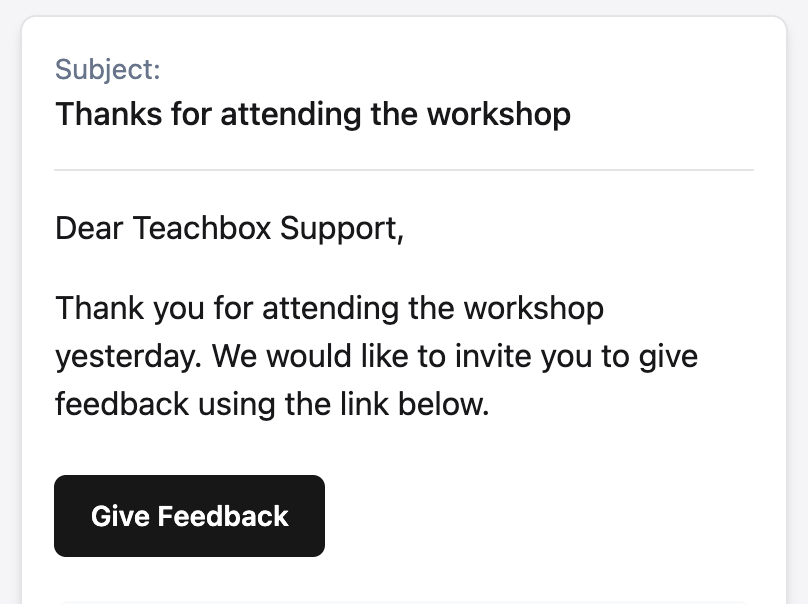
You can configure the session follow-up emails to automatically include a feedback link or button.
Tip: Create a follow-up email that goes to attended contacts only and includes the feedback link.
- Open the course date (or template) and click Settings.
- Click the Emails tab in the left navigation.
- In Session Emails, open a follow-up email for the session you want to edit.
- Insert a feedback button or link using the below tags:
[Button to="Feedback"]Give Feedback[/Button][Link to="Feedback"]Give Feedback[/Link]
These links go directly to the feedback form for that session.
Feedback Window
Feedback opens after the session starts. It closes after the configured close window, or the default close window if none is set.
Set the default close window in Settings → System Settings, in the Feedback Settings section (field: Default feedback close window).
To override it for a specific course date, open the course date, click Settings → Advanced, then enter a value in Closes after (optional) in the Session Feedback section.
Reviewing Feedback
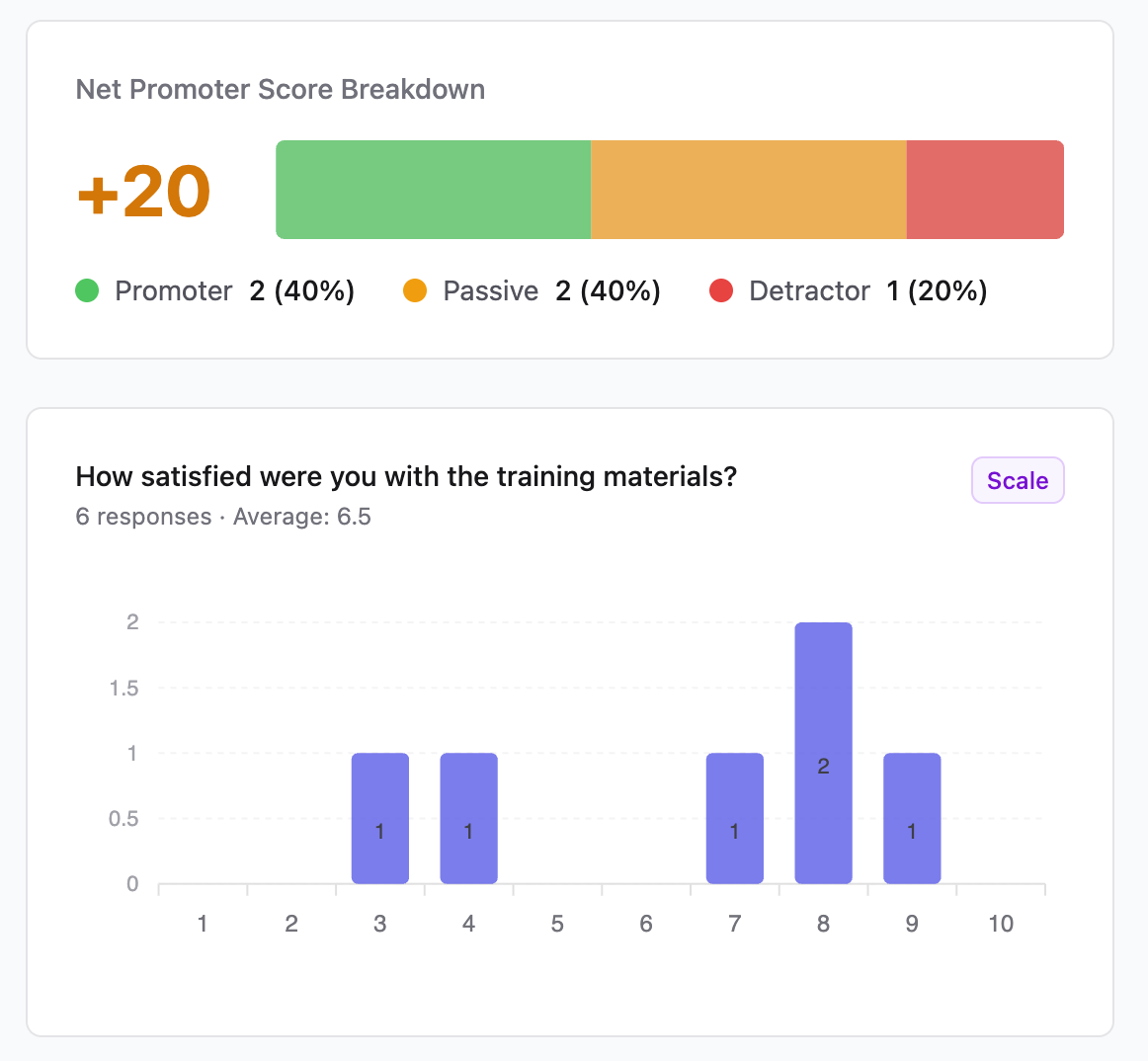
- Go to Operations → Forms and open the feedback form.
- Click the Insights tab to review aggregated results.
Exporting Feedback
- From the feedback form, click the Submissions tab.
- Click Export (top right) to download the responses.